
Witcher 3 Best Settings for Steam Deck (and Steam Deck OLED)
Best Witcher 3 Steam Deck settings: DX11, 40Hz/40 FPS, 12W TDP, OLED tweaks, battery tips, cloud saves, and what the DX12-only Remastered update changes.

In this article (0 sections)
Updated September 27, 2026. The best Witcher 3 settings for Steam Deck today are simple: run the game in DirectX 11, use a Medium-based custom preset with shadows and reflections turned down, and lock the Deck to 40Hz / 40 FPS with a TDP limit around 12W. That profile gives a steadier picture and better battery life than chasing an unstable 60 FPS. One big caveat: the free Witcher 3 Remastered upgrade on September 29 is DirectX 12 only, so parts of this guide will change within days.
Quick answer
The Witcher 3: Wild Hunt is Steam Deck Verified. On the current build, pick DirectX 11 in the launcher, use a custom Medium preset (Low shadows, Low screen space reflections, HairWorks and ray tracing Off), then set Refresh Rate 40Hz, Framerate Limit 40 and TDP about 12W in the Quick Access menu. On Steam Deck OLED you can raise shadows and foliage a notch at roughly 13W. Expect to re-tune after the DX12-only Remastered update on September 29, 2026.
Is The Witcher 3 Steam Deck Verified?
Yes. Valve's Steam Deck compatibility report for The Witcher 3: Wild Hunt - Complete Edition lists the game as Verified, the highest of Valve's four ratings. Valve's test results confirm that the default controller configuration is fully functional, the on-screen controller glyphs match the Deck, interface text is legible, and the default configuration is performant.
The report carries one note: external controllers are not supported as the primary player. For most people that doesn't matter, because the Deck's built-in controls are the intended way to play. If you dock the Deck and want to use a separate gamepad, test it before a long session.
DirectX 11 vs DirectX 12 on Steam Deck
Since the 2022 next-gen update, the PC version has shipped with two renderers. You pick between them in the game's launcher, which appears when you press Play: a dropdown next to the play button lets you choose DirectX 11 or DirectX 12.
Why DX11 is still the standard pick
When the next-gen update launched in December 2022, the DX12 mode crashed on Steam Deck, and GamingOnLinux documented selecting DX11 in the launcher as the fix. Valve released a Proton Hotfix shortly afterwards that got DX12 running. User reports at the time, though, described less stable frame rates in DX12 than in DX11, and GamingOnLinux noted that the DX12 mode was built on d3d11on12, a translation layer Microsoft itself advises against for complex 3D applications.
Steam Deck guides published in 2026, including Switchblade Gaming's performance guide, still treat DX11 as the mode to use and report that DX12 is unstable under Proton. RetroResolve's next-gen Deck guide gives the same advice and adds a warning: do not skip the launcher with a launch option, because skipping it can default you to the DirectX 12 build.
What you lose in DX11
- Ray tracing is DX12 only. It is far too heavy for the Deck anyway.
- Modern upscalers such as FSR 2 and DLSS belong to the DX12 renderer. Community guides list TAAU (temporal anti-aliasing with upscaling) as the DX11 option.
- Everything else that matters on a 1280x800 screen, including textures, foliage, shadows and the next-gen visual upgrades, is still there.
If you want to try DX12 anyway, one early Deck user reported a solid 40 FPS at Medium with FSR 2 after Valve's hotfix. That is one report, not a benchmark.
Best Witcher 3 In-Game Settings for Steam Deck
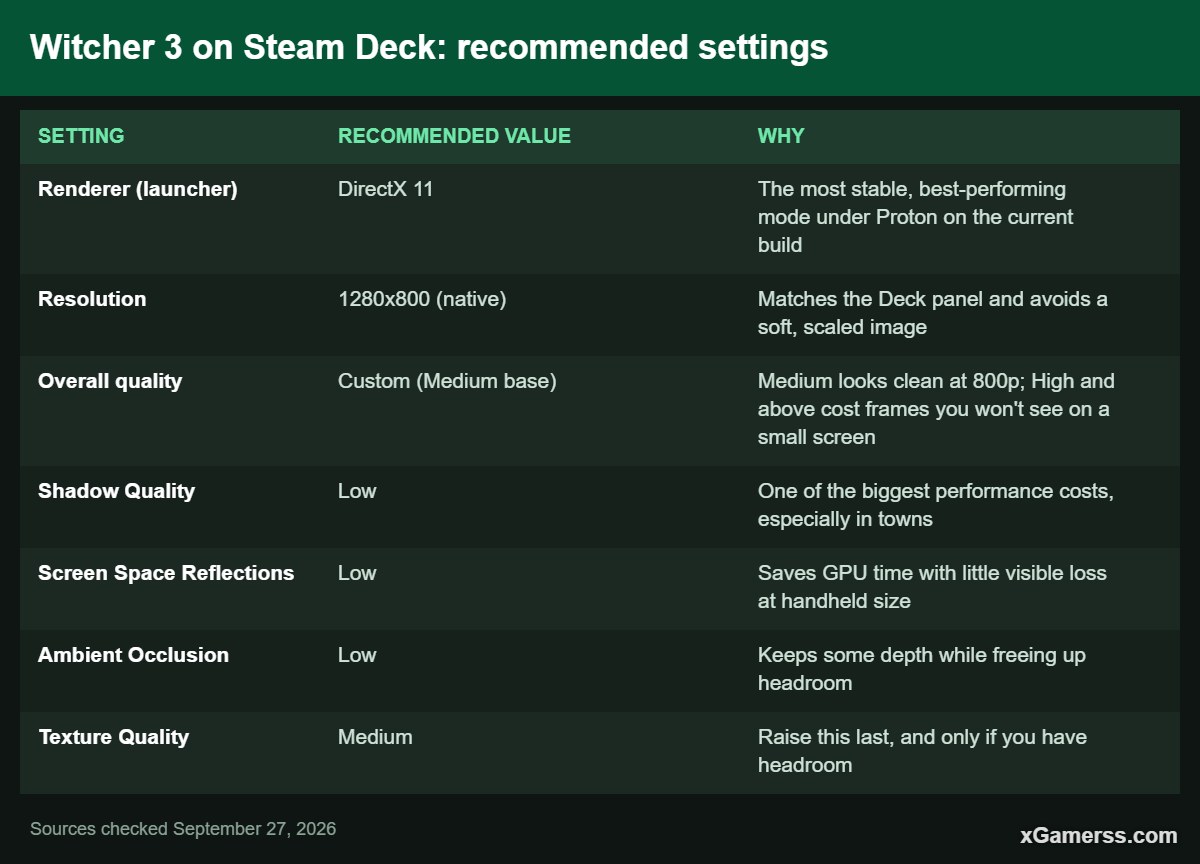
The table below is a 40 FPS profile for the original LCD Steam Deck. It is built mainly from Switchblade Gaming's 2026 Deck guide, with the priority order (cut shadows, foliage, reflections and background NPCs first; raise textures last) matching jeu.video's settings guide. Keep the resolution at the native 1280x800. Dropping below native on a 7-inch screen costs more clarity than it gains in frames.
| Setting | Recommended value | Why |
|---|---|---|
| Renderer (launcher) | DirectX 11 | The most stable, best-performing mode under Proton on the current build |
| Resolution | 1280x800 (native) | Matches the Deck panel and avoids a soft, scaled image |
| Overall quality | Custom (Medium base) | Medium looks clean at 800p; High and above cost frames you won't see on a small screen |
| Shadow Quality | Low | One of the biggest performance costs, especially in towns |
| Screen Space Reflections | Low | Saves GPU time with little visible loss at handheld size |
| Ambient Occlusion | Low | Keeps some depth while freeing up headroom |
| Texture Quality | Medium | Raise this last, and only if you have headroom |
| Foliage Visibility Range | Medium | Velen and Skellige fields are heavy; High mostly helps distant views |
| Terrain Quality | Medium | A balanced middle setting |
| Number of Background Characters | Low | Crowds in Novigrad hit the Deck's CPU hardest |
| NVIDIA HairWorks | Off | Very expensive and not worth it on handheld hardware |
| Ray Tracing | Off | DX12 only and far beyond the Deck's budget |
| Motion Blur / Blur | Off | Smears the image at 40 FPS and costs performance |
| Depth of Field / Chromatic Aberration | Off (optional) | A cleaner image on a small screen; turn off first if you need frames |
| Sharpening | High | Offsets the softness of temporal anti-aliasing at 800p |
| In-game frame cap / VSync | Leave uncapped; cap in SteamOS | Only use one limiter so they don't conflict |
A practical way to validate any profile, as jeu.video recommends, is to test three situations before you commit: a busy city, riding on horseback and a crowded fight. Novigrad is the usual stress test. If the frame rate holds there, it will hold almost everywhere.

SteamOS Quick Access Settings: TDP, Frame Limit and Refresh Rate
Most of the smoothness comes from the Deck's system-level performance controls, not the in-game menu. Press the ... (Quick Access) button, open the Performance tab and turn on per-game settings so these values only apply to The Witcher 3.
- Refresh Rate: 40Hz. Matching the display to the frame rate makes 40 FPS feel even. Valve's LCD model has a 60Hz panel and the OLED model goes up to 90Hz, and both can be set to 40Hz.
- Framerate Limit: 40 FPS. This is the sweet spot in 2026 Deck guides. The game can often go above 40, but it won't hold 60 in the open world.
- TDP Limit: 12W (LCD) or 13W (OLED). The APU runs at 4 to 15W according to Valve's specs. Switchblade Gaming reports a stable 40 FPS through demanding areas like Novigrad at 12W on the LCD model.
- Performance overlay: set it to level 2 or higher while tuning, so you can watch frame times and power draw, then switch it off.
If you'd rather maximise battery life, jeu.video's battery-focused profile uses a 30 FPS lock, the default TDP and moderate screen brightness. Switchblade found that 10W still works but brings occasional dips to about 35 to 38 FPS in Novigrad.
Steam Deck OLED: What to Change
The Steam Deck OLED uses the same 1280x800 resolution and the same 4 to 15W power range as the LCD model. What it adds is a 7.4-inch HDR OLED screen (up to 90Hz), a 50Whr battery instead of 40Whr, and better cooling. So the OLED doesn't unlock a different tier of graphics settings, but it gives you more battery and more thermal headroom.
Switchblade Gaming's OLED profile keeps the same 40Hz / 40 FPS target at a 13W TDP and raises three settings compared with the LCD profile:
- Shadow Quality: Medium (instead of Low)
- Foliage Visibility Range: High (instead of Medium)
- Background quality (as the guide labels it): Medium (instead of Low)
The same guide reports that the OLED can reach 40 to 45 FPS with those settings. The 90Hz panel is tempting, but a fixed 40 or 45 FPS on a matching refresh rate is still the more consistent experience. The Witcher 3's Steam page lists HDR support, and the OLED has an HDR display. We could not confirm how well the game's HDR mode behaves on the Deck, so compare it with SDR yourself before relying on it.
Expected FPS and Battery Life
Handheld figures vary with the game version, SteamOS and Proton versions, and where you are in the world. The numbers below come from published Deck guides, not our own testing.
- 40 FPS locked, 12W, LCD: stable in demanding areas such as Novigrad, with about 2 hours of battery (Switchblade Gaming).
- 40 FPS locked, 13W, OLED: about 2.5 hours of battery, thanks to the larger 50Whr cell (Switchblade Gaming).
- Uncapped at Medium: roughly 45 to 60 FPS, with 50 to 60 indoors and dips into the high 30s in the open world. The Deck runs hot, and battery life is around 80 minutes (RetroResolve).
- With the TDP limit removed (Switchblade cites 18 to 22W): about 90 minutes, and only worth it if you're chasing 60 FPS on low settings (Switchblade Gaming).
Battery tips that actually help
- Cap the frame rate. It is the single biggest battery saver.
- Lower the TDP limit until the frame rate starts to dip in cities, then raise it by 1W.
- Keep screen brightness moderate, especially on the OLED, where bright scenes use more power.
- Use suspend (press the power button) instead of quitting, so you skip the launcher and loading screens when you pick the game up again.
Controls, Cloud Saves and Cross-Progression
Controls
Because the game is Verified, the default controller layout works out of the box and button prompts show Deck glyphs. You don't need a community layout to play. If you want quicker access to menus, the back grips are a good place to map the map, inventory or quick-save. If you're new to the game or coming back after a long break, our Witcher 3 combat tips for beginners explain the dodge, roll and sign basics that matter on a gamepad.
Steam Cloud
The Steam version supports Steam Cloud, so saves sync between your Deck and a Steam PC automatically. Let the sync finish before powering off.
Cross-progression with consoles
CD Projekt Red's support page explains that cross-progression uses a CD PROJEKT RED account and works across PC, PlayStation, Xbox and Nintendo Switch. The steps are:
- Update the game, open My Rewards from the main menu and connect your CD PROJEKT RED account.
- Check that cross-progression is enabled under Options > Gameplay > Cross Progression.
- Make a new save. It uploads automatically and shows a cloud icon.
- On the other platform, connect the same account and load the uploaded save from the Load Game menu.
CD Projekt Red notes that cross-progression gives you the latest save for each save type, not your whole save list, so make a manual save before switching devices.
What the Witcher 3 Remastered Update Changes for Steam Deck
The Witcher 3 Remastered launches on September 29, 2026 as a free upgrade for existing owners. It unlocks at 3 AM PDT / 11 AM BST according to the times CD Projekt Red announced. For the full feature list, see our Witcher 3 Remastered release date and free upgrade guide. Here is what matters for the Deck specifically.
DirectX 11 is going away
CD Projekt Red's own support article on upcoming minimum requirements states that, starting from the next update, the game will run exclusively on DirectX 12. It also sets Windows 11 as the minimum OS and requires an SSD. For Deck owners, this means the DX11 advice in this guide stops applying to the updated build. The support article says players can revert to an earlier version, and PC Gamer reports that "The Witcher 3: Wild Hunt Classic" remains available as a beta branch on Steam and GOG.
What CDPR has said about Steam Deck
The only official Deck comment we found comes from Jakub Kutrzuba, Executive Producer of External Projects at CD Projekt Red, speaking to PC Gamer: "When it comes to Steam Deck, based on what we see, the game will work the same way, but look much much better." He credited the newer rendering engine, saying "many of the systems just work faster," so the team can show "a more beautiful image with the same cost."
That is encouraging, but it is not a spec sheet. CDPR has not published Steam Deck frame-rate targets, recommended settings or a statement on Proton compatibility for the Remastered version. Its official PC requirements list Windows 11, which the Deck doesn't run natively. They don't mention SteamOS at all, and Valve's Verified rating was earned by the current build.
Our advice for launch week
- Finish any quest you're in the middle of and make a manual save before September 29.
- After updating, start from the same 40Hz / 40 FPS / 12W baseline and check Novigrad before changing anything else.
- If the Remastered build runs poorly or crashes on your Deck, the Classic beta branch is the fallback. Just remember that saves may not move backwards between versions, so keep a copy of the save you want.
We'll update this guide once the Remastered build is live and there is reliable Deck data.
Frequently Asked Questions
QCan the Steam Deck run The Witcher 3 at 60 FPS?
Not consistently. Published tests show 50 to 60 FPS indoors at Medium but dips into the high 30s in the open world. A locked 40 FPS at 40Hz is the most common recommendation.
QShould I use DX11 or DX12 on Steam Deck?
On the current build, DX11. Choose it from the dropdown in the game's launcher. The Remastered update on September 29, 2026 makes the game DirectX 12 only, so that choice disappears unless you switch to the Classic beta branch.
QWill Witcher 3 Remastered run on Steam Deck?
CD Projekt Red's Jakub Kutrzuba told PC Gamer the game "will work the same way, but look much much better" on Steam Deck. No official frame-rate targets or Deck settings have been published, so wait for real-world results.
QHow long does the battery last playing The Witcher 3 on Steam Deck?
Guides report about 2 hours on the LCD model at a 40 FPS cap and 12W, about 2.5 hours on the OLED at 13W, and around 80 to 90 minutes if you run uncapped.
QDo my Witcher 3 saves carry over between Steam Deck and PC?
Yes. The Steam version supports Steam Cloud. For consoles, link a CD PROJEKT RED account through My Rewards to use cross-progression, which syncs your latest save for each save type.
New to the game on Deck? Start with our Witcher 3 beginner's guide, then browse every guide on the Witcher 3 hub. If you play on a PC with a keyboard, the Witcher 3 console commands list is handy for testing settings in specific locations.
Sources checked on September 27, 2026 against Valve's Steam Deck compatibility report and Steam Deck tech specs, the Steam store listing, CD Projekt Red's support pages on minimum requirements and cross-progression, PC Gamer's interview with CD Projekt Red, and Steam Deck settings guides from Switchblade Gaming, RetroResolve, jeu.video and GamingOnLinux.
Kai Mercer covers game news, free games, release calendars and guides for xGamerss.
More from Kai Mercer →
Comments (0)
No comments yet. Be the first!
Sign in or create an account to earn karma — or comment as a guest.